
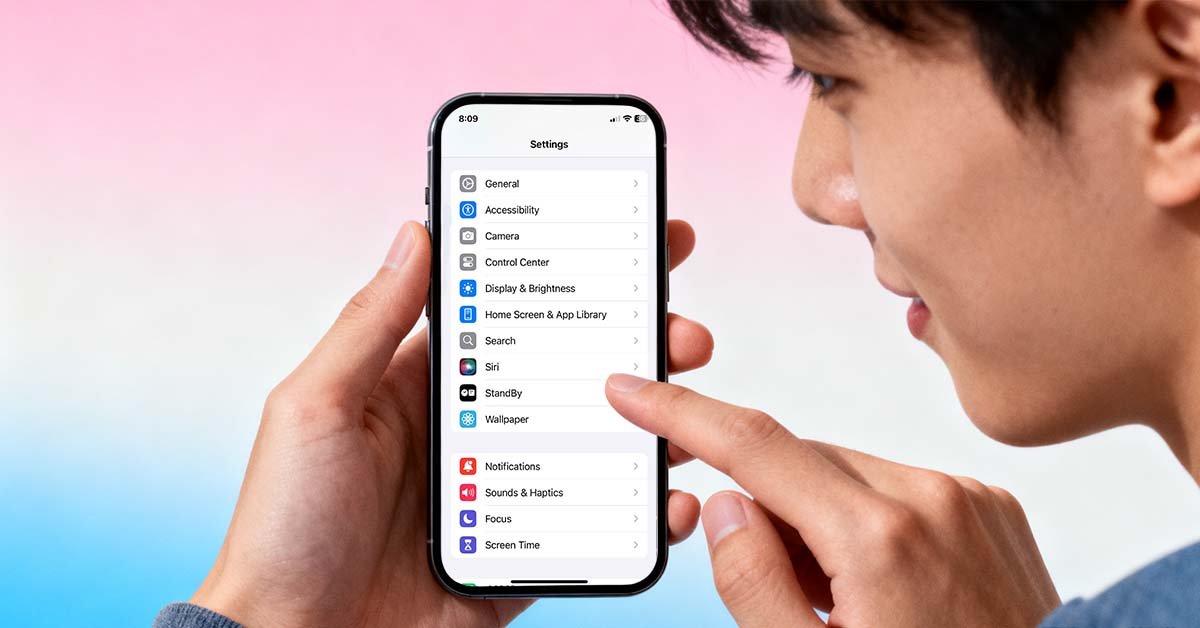
Got your first iPhone or upgrading to a newer model like the iPhone 17? Whether you’ve just switched from Android or are new to Apple’s ecosystem, setting up an iPhone for the first time can seem overwhelming.
Don’t worry — Apple makes it simple. iPhones are known for their user-friendly design, intuitive software (iOS), and long-term support. Even if you’re using a refurbished iPhone from Keromobile Dubai, you’ll enjoy the same features and smooth experience as new users worldwide.
In this step-by-step guide, we’ll show you how to use and set up an iPhone in 10 easy steps — perfect for beginners who want to get started quickly and confidently.
1. Create an Apple ID
Your Apple ID is your key to the Apple ecosystem — it lets you download apps, use iCloud, sync across devices, and manage your settings.
To set it up:
- Go to Settings > Sign in with your iPhone
- Tap Don’t have an Apple ID? and follow the prompts
- Use your main email (or create a new one)
Once you have it, you can access the App Store, Apple Music, and more.
2. Sync Your iPhone with iCloud
iCloud automatically backs up your data and keeps everything in sync — photos, contacts, messages, and more.
To turn on iCloud:
- Go to Settings > [Your Name] > iCloud
- Toggle on the apps and data you want to sync
This ensures your files are safe, even if you change phones later.
3. Configure Privacy and Security Settings
Your iPhone offers multiple layers of security:
- Face ID / Touch ID for fast, secure unlocking
- Passcode lock for extra protection
- Find My iPhone to locate or erase your device remotely
To review app permissions:
Go to Settings > Privacy & Security — and choose which apps can access your camera, microphone, or location.
4. Transfer Data from Android
If you’re coming from Android, Apple’s Move to iOS app makes it easy to bring your contacts, messages, photos, and apps to your new iPhone.
Steps:
- Download Move to iOS on your Android phone (from Google Play)
- Follow the on-screen setup during your iPhone’s initial configuration
- Transfer your files wirelessly
No cables, no hassle — everything moves securely.
5. Learn iPhone Tips
Apple’s built-in Tips app is your personal learning center.
It offers bite-sized tutorials about using the iPhone — from gestures to shortcuts.
You’ll find new tips after every major iOS update, so check it occasionally to stay up to date.
6. Customize the Control Center
The Control Center gives you quick access to essential tools — like brightness, WiFi, Bluetooth, flashlight, camera, and music.
To open it:
- Swipe down from the top-right corner of your screen (on iPhone X and later)
To customize:
- Go to Settings > Control Center and add shortcuts (for example, Dark Mode, Low Power Mode, or Screen Recording).
7. Use the Notification Center
Swipe down from the top of your screen to open the Notification Center.
Here you’ll see recent calls, messages, app alerts, and reminders.
To manage notifications, go to Settings > Notifications — you can control which apps can alert you and how they appear.
7. Use the Notification Center
Swipe down from the top of your screen to open the Notification Center.
Here you’ll see recent calls, messages, app alerts, and reminders.
To manage notifications, go to Settings > Notifications — you can control which apps can alert you and how they appear.
9. Set Up Siri
Siri is Apple’s voice assistant — and your hands-free helper.
You can say “Hey Siri” to call someone, send messages, check the weather, or set reminders.
To turn Siri on:
- Go to Settings > Siri & Search
- Enable Listen for “Hey Siri”
If you’re using compatible earbuds, like the Techsnex Q16 Pro Translation Earbuds, Siri will also work seamlessly via Bluetooth.
10. Use AirDrop to Share Files
AirDrop lets you share photos, videos, or documents instantly between Apple devices nearby.
To use it:
- Turn on WiFi and Bluetooth
- Open the file you want to share → tap the Share icon → choose AirDrop
- Select the recipient
It’s one of the easiest ways to transfer files without apps or cables.
Enhance Your iPhone Experience with Built-In Apps
Apple’s pre-installed apps make your life easier:
- Maps for navigation
- Photos for editing
- Mail for communication
- Safari for fast browsing
- Health for fitness tracking
You can also customize your home screen with widgets or use apps like Widgetsmith to make your layout more personal.
Refurbished iPhone vs. New iPhone: Same Power, Lower Price
If you’re just starting your iPhone journey, a refurbished iPhone is the smartest way to save money.
At Keromobile, every refurbished device is:
- Professionally tested and certified
- Fully compatible with the latest iOS 18
- Backed by warranty and fast Dubai delivery
You can get models like:
- iPhone 12 or iPhone 13 for balanced performance
- iPhone 14 Pro Max for flagship users
Explore our full refurbished collection and enjoy up to 70% savings versus buying new.
Takeaway
Switching to iPhone doesn’t have to be complicated.
With a few simple steps, you’ll be ready to enjoy all that iOS offers — from smooth performance to incredible apps and seamless syncing.
And if you’re looking for affordable, high-quality refurbished iPhones in Dubai, Keromobile is your trusted destination — same Apple experience, better value.