
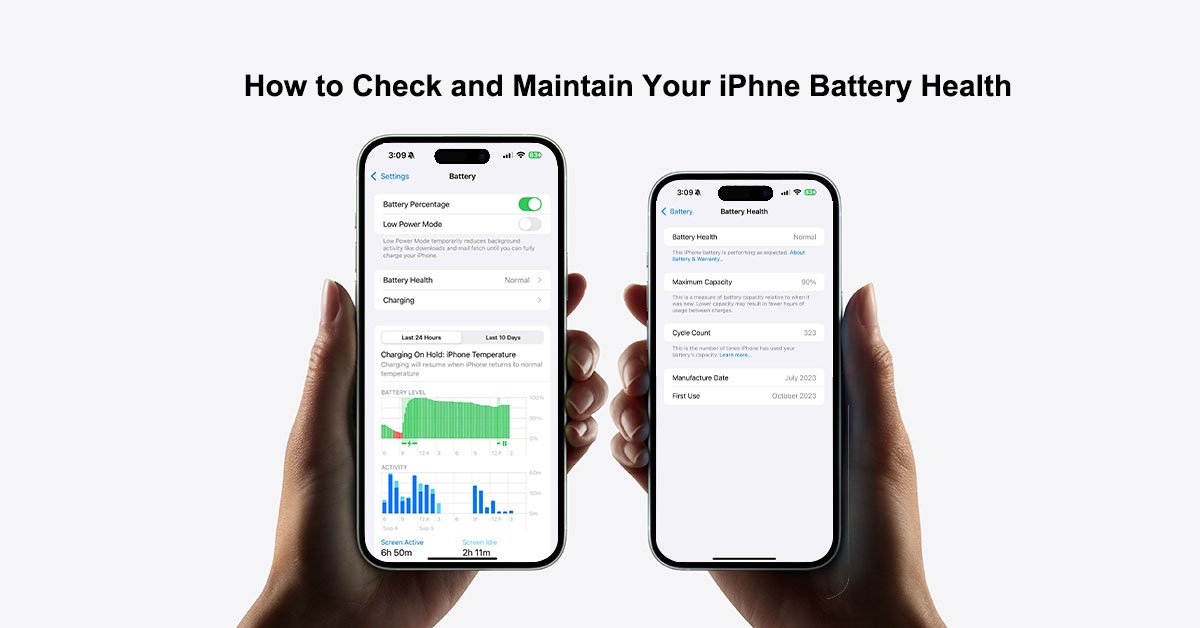
Is your iPhone battery draining faster than before? You’re not alone. Over time, every smartphone battery naturally loses capacity. That’s why understanding and monitoring iPhone battery health is essential—not only to extend your device’s lifespan but also to make smarter purchase decisions, especially when buying a refurbished iPhone.
At KeroMobile, we believe in full transparency. That’s why every refurbished iPhone we sell includes a detailed report on battery health. Let’s dive into what iPhone battery health means, how to check it, and how to make your battery last longer.
What is iPhone Battery Health?
iPhone battery health refers to the overall condition and capacity of your device’s battery. Apple measures this as a percentage compared to when the phone was brand new.
- 100% Health (New Device): The battery holds its full designed capacity.
- 90% Health (After Years of Use): The battery now holds about 90% of its original capacity, meaning shorter screen time and more frequent charging.
iPhones use lithium-ion batteries, which typically last 300–500 charging cycles before noticeable capacity decline.
How to Check Your iPhone Battery Health?
Not all iPhone models with battery health function; there are several methods to check battery health:
1. Use iPhone Settings
Go to Settings > Battery > Battery Health & Charging.
Here you’ll see:
- Maximum Capacity (%): Shows the remaining battery capacity compared to new.
- Peak Performance Capability: Indicates if your battery supports normal performance.
2. Via a Mac
Connect your iPhone via USB.
- Hold Option and click the Apple logo > System Report > USB
- Find your iPhone and check the Battery Information (cycle count, manufacturer, etc.).
3. Via Third-party Apps
- CoconutBattery (Mac): Displays mAh values, cycle count, and voltage.
- iMazing (Mac/Windows): Offers history tracking and exportable reports.
- AccuBattery (Mobile): Monitors charging habits and battery wear
When Should You Replace Your iPhone Battery?
You should consider replacing your iPhone battery when its health drops below 80%, as this indicates a significant reduction in capacity.
However, battery percentage isn’t the only sign – your iPhone may also show performance issues in daily use.
Watch out for these common issues:
- Rapid battery drain
- Overheating during use or charging
- Battery swelling (dangerous, may damage your phone)
- Phone only works while plugged in
- Random shutdowns even with charge remaining
If you notice any of these issues, replacing the battery can restore performance, improve reliability, and extend the life of your iPhone.
How to Maintain Your iPhone Battery Health?
- Keep charge between 20%–80%.
- Turn off Wi-Fi, Bluetooth, GPS when not in use.
- Use certified Apple chargers.
- Lower screen brightness and reduce auto-lock time.
- Avoid extreme temperatures.
- Enable Low Power Mode when needed.
- Keep iOS and apps updated.
- Unplug once fully charged (avoid overnight charging).
- Close unused apps running in the background.
- Limit heavy gaming or long video streaming.
Key Takeaways
Monitoring iPhone battery health is vital for performance, safety, and longevity. Whether through Apple’s built-in tools or third-party apps, keeping an eye on your battery helps you know when it’s time for replacement.
At KeroMobile, every refurbished iPhone comes with a detailed battery health report, so you know exactly what you’re buying. This transparency gives you confidence and ensures peace of mind.
A healthy battery means a happy iPhone—and a stress-free digital life.